THE KLYKO GUIDE · PROJECT ORGANIZATION
How to Organize Browser Tabs and Links Across Multiple Client Projects
· 8 min read
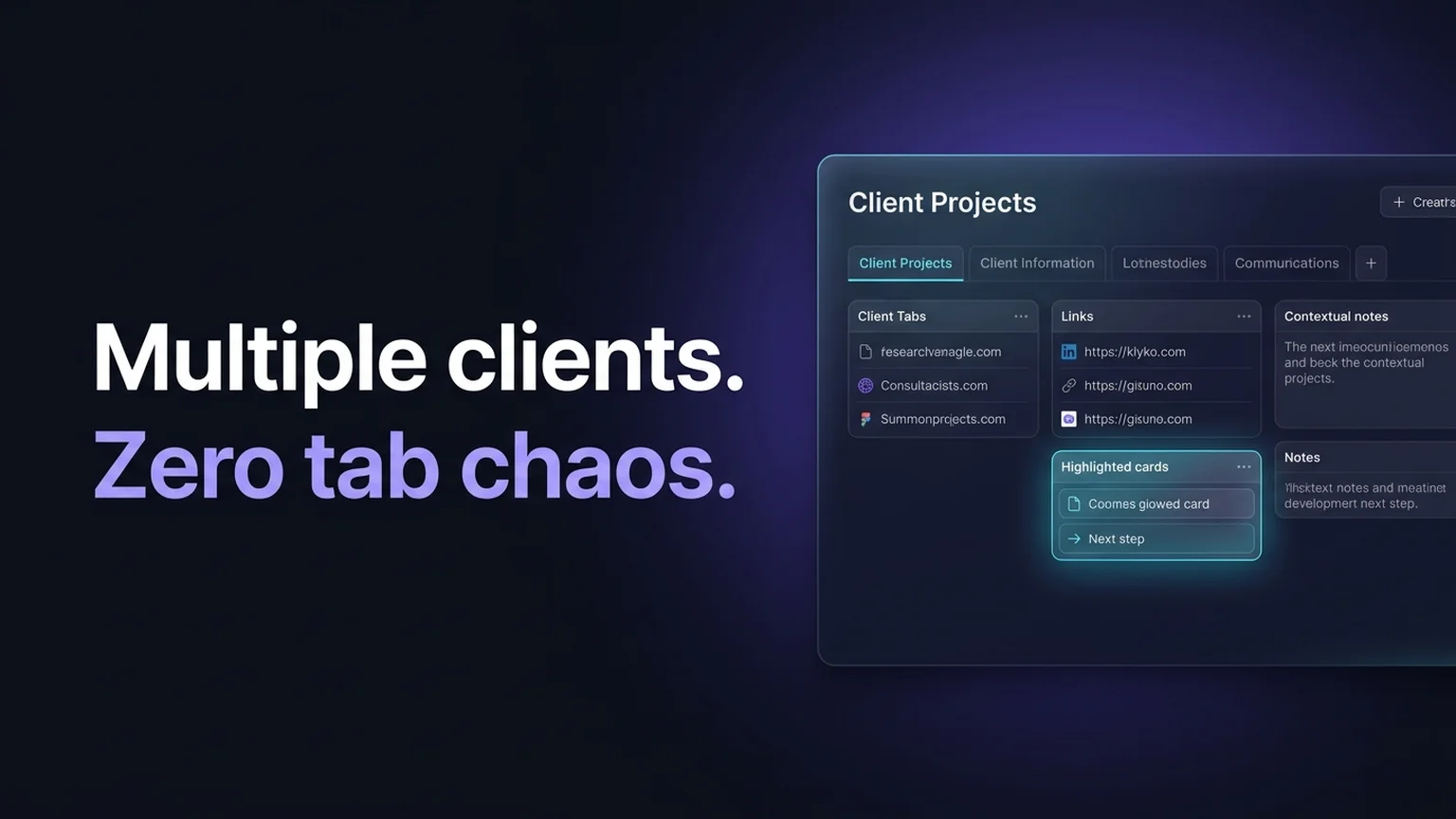
You start Tuesday morning fixing a styling bug for Client A. Two hours in, an urgent email arrives from Client B asking for design review links. You open their Figma workspace, their staging URL, and their feedback document. By lunchtime, you have 55 tabs open across three browser windows, Client A’s admin panel is lost behind Client B’s spreadsheet, and your laptop fan sounds like a jet engine.
When you manage multiple client projects, browser tab chaos is not just an aesthetic annoyance. It is a direct leak of billable hours and cognitive energy. Every time you dig through dozens of favicons to find the right client dashboard, you pay a steep context-switching penalty.
To organize browser tabs across multiple clients, you need a system that isolates client context, groups URLs by deliverable, and lets you shut down one project completely before opening the next.
Why standard browser tools fail with multiple clients
Most freelancers and agency consultants attempt to manage multiple client tabs using native browser features: colored tab groups, separate browser profiles, or nested bookmark folders. While these help with basic browsing, they collapse under active multi-client workloads.
| Method | Best used for | Where it breaks down |
|---|---|---|
| Chrome Tab Groups | Visual grouping within a single work session | Tabs stay in memory, draining RAM; groups close or sync inconsistently across restarts. |
| Separate Browser Profiles | Distinct Google accounts or client login credentials | High system overhead; switching profiles opens new heavy browser windows without task context. |
| Bookmark Folders | Static reference repositories | Saves URLs only; cannot store client decisions, open tickets, or pending next actions. |
| Klyko Client Workspaces | Active client projects with links, notes, checklists, and next steps | Requires intentional saving when wrapping up a task. |
The core flaw of keeping tabs open in color-coded groups is that your computer treats every tab as active work. Fifty client tabs consume gigabytes of memory, and one browser crash can wipe unpinned tab groups. More importantly, seeing Client B's unresolved tasks while working on Client A triggers attention residue, pulling your focus away from the deliverable in front of you.
The 4-part client workspace blueprint
Instead of treating your browser tab strip as a temporary holding pen, give each active client an independent workspace. A functional client workspace requires four elements:
- Client Source of Truth: The contract, invoice tracker, client Google Drive folder, and primary communication channel (Slack, Basecamp, or email thread).
- Deliverable Link Sets: Curated groups of links for specific tasks (e.g., “Sprint Development” vs. “Monthly Reporting”).
- Client Rules & Decision Log: A short note detailing client quirks (e.g., “Client requires staging approvals on Thursdays; staging server uses custom basic auth”).
- Current Next Step: The exact next action required to move the deliverable forward when you return.
When you structure each client this way, you remove the need to hoard tabs. You can close all client windows with confidence because everything required to resume the project is documented in one place.
Sort client tabs into task-based link sets
A common mistake is saving 25 random links into a single generic client folder. When you reopen that folder, 25 tabs launch simultaneously, creating an instant wall of distraction.
Break client tabs down into deliverable link sets based on what you actually do during a working session:
- Review & Feedback Set: Client brief, Figma prototype, staging review URL, feedback spreadsheet (3–4 tabs).
- Active Development Set: GitHub repository, Jira board, local development server, API documentation (4–5 tabs).
- Admin & Billing Set: Client invoice generator, contract PDF, time tracker, client email thread (3 tabs).
By organizing links into task-based sets, you only open the three or four tabs necessary for the task at hand. For more on structuring task links, see our guide on how to organize project links and notes together.
Keep client notes and constraints next to their links
Links alone do not tell the whole story. If Client C insisted during a call that you use a specific staging domain or avoid modifying a legacy database table, bookmarked URLs will not remind you of that constraint.
Keep a concise client decision log right alongside the links:
- Client preferences: Preferred meeting times, communication cadence, brand hex codes, or repository branch naming conventions.
- Access credentials & endpoints: Non-sensitive staging URLs, test user IDs, or API sandbox links.
- Pending approvals: Notes on who needs to sign off on a design before code deployment begins.
Having client notes directly next to your saved links prevents embarrassing mistakes, such as deploying to the wrong environment or asking a client a question they answered three weeks ago.
Worked example: managing two active client retainers
Here is how a freelance designer and front-end developer organizes two demanding client projects using Klyko workspaces:
Workspace 1: “Acme Corp — SaaS Redesign”
- Core Links: Master Figma file, linear roadmap, shared Google Drive asset library.
- Link Set A (Design Sprint): Figma component library, UX research interview recordings, staging design tokens page.
- Link Set B (Client Handoff): Loom walkthrough recorder, client staging review environment, Zeplin export page.
- Client Note: “Acme CEO reviews work on Monday afternoons. Always verify mobile viewport (390px) before sending review links.”
- Next Action: Export revised billing modal components to Figma and post Loom summary to Slack.
Workspace 2: “Starlight Retail — E-commerce Optimization”
- Core Links: Shopify admin dashboard, GitHub repo, Google Analytics conversion funnel.
- Link Set A (Checkout Audit): Shopify staging checkout, Stripe test portal, Hotjar session recordings.
- Client Note: “Never push code on Fridays. Client marketing team runs ad campaigns over weekends.”
- Next Action: Run Lighthouse speed audit on updated product template and benchmark against baseline.
When switching from Acme Corp to Starlight Retail, the freelancer does not drag tabs between windows. They close Acme’s tabs, open the Starlight Retail workspace, click “Checkout Audit” to launch only the three relevant links, and immediately read the next action card. The transition takes less than a minute.
The 60-second client context switch routine
To maintain clean separation between clients, follow this simple end-of-session routine before switching to another client or closing your laptop:
- Save newly discovered resources: If you opened reference documentation or an asset during your sprint, save its URL to the client board.
- Write the next action: Before closing your tabs, type the single next thing you need to do for this client. Be specific: "Review client comments on slide 4" is actionable; "Client work" is not.
- Close the client's browser tabs: Close the browser window or use your extension to stow the tabs. Do not leave them lingering in your tab strip.
- Open the next client workspace: Open your next client board, review the previous note and next step, and launch only the link set for the upcoming task.
If you struggle with leaving dozens of tabs open out of fear of losing research, read our walkthrough on how to save tabs in Chrome by project and reopen them later.
Frequently asked questions
Should I use separate Chrome profiles for each client?
Separate Chrome profiles are essential if you need to stay logged into different Google accounts, Slack workspaces, or client SSO portals simultaneously. However, profiles do not solve tab sprawl—you will simply end up with three heavy Chrome windows each holding 20 open tabs. The best setup is using profiles strictly for authentication and using a workspace tool like Klyko to manage active project links within those profiles.
How do I prevent tabs from different clients getting mixed up?
Adopt a strict "one client window" policy. Never allow tabs for Client A and Client B to share a single browser window. When switching tasks, close or stash Client A’s tabs before opening Client B’s link set.
What if I need to reference a link across multiple clients?
Keep a separate "General Tools" or "Design Inspiration" workspace for cross-cutting resources, such as stock photo libraries, CSS reference guides, or invoicing software. Keep client boards reserved for client-specific deliverables.
Can Klyko work offline when I'm traveling or working without Wi-Fi?
Yes. Klyko is built local-first using IndexedDB. All your client workspaces, notes, links, and checklists are stored locally on your machine and load instantly without requiring an active internet connection or account login. For more details, explore how local-first software protects your workflow.
Save your work context. Reopen it anywhere. No account required to create your first board.
Try Klyko Free