THE KLYKO GUIDE · PROJECT ORGANIZATION
How to Save Tabs in Chrome by Project and Reopen Them Later
· 9 min read
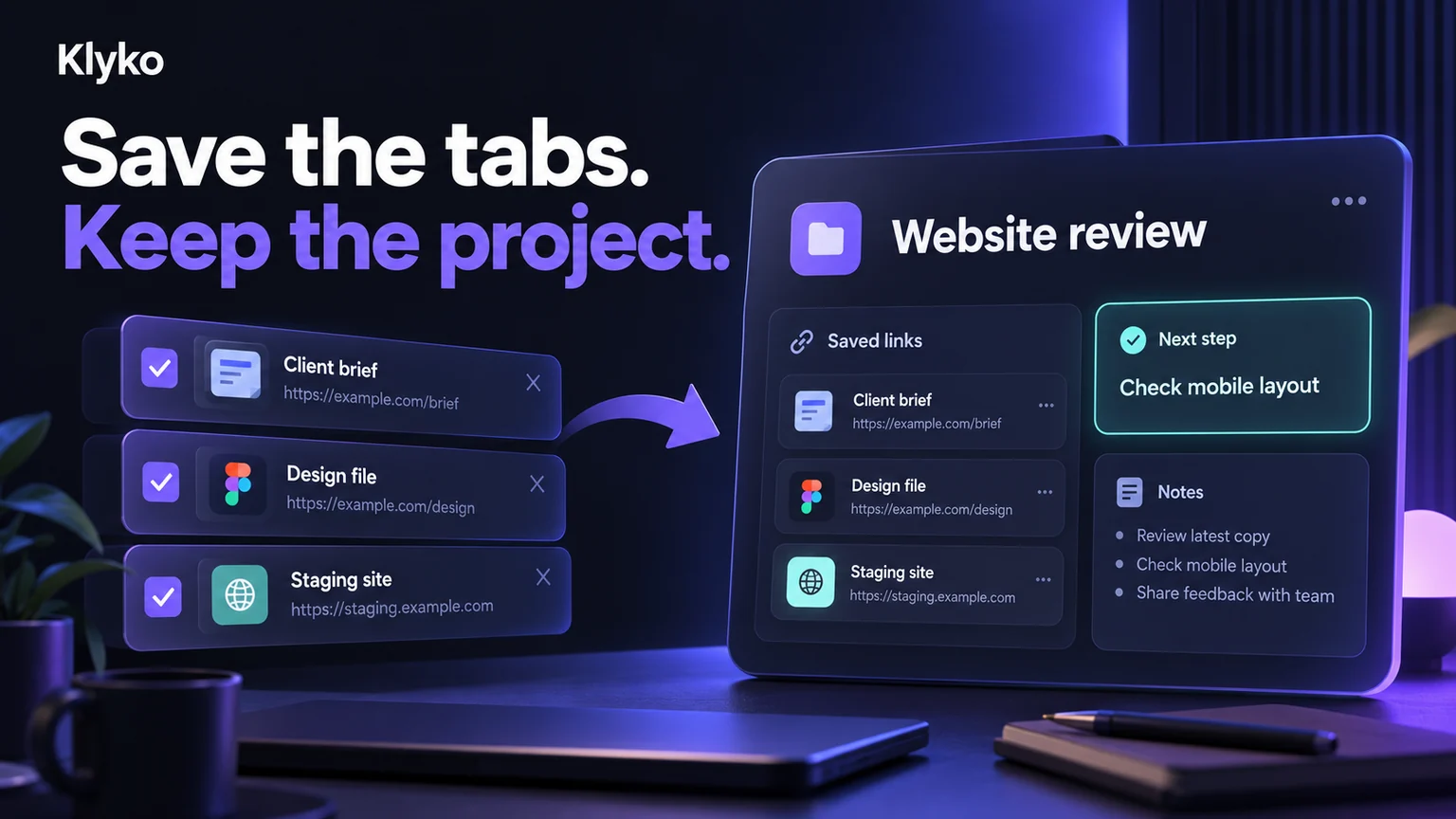
You are ready to stop working, but closing the browser feels risky. The client brief, design file, reference pages, and half-finished research are spread across several tabs. You want a clean window tomorrow without losing the pages you need.
The useful question is not just how to save tabs in Chrome. It is how to save the right tabs for a project, check that they are saved, and reopen a useful working set later.
The shortcuts and extension workflow below are for desktop Chrome. On a phone, use your browser's own tab controls or add an individual URL to a Klyko board.
Choose a saving method for the job
You do not need a new tool for every collection of tabs. Start with what you want to return to: a few destinations, a named group, the last browser session, or a project with its own context.
| Method | Useful when you need | What to keep in mind |
|---|---|---|
| Bookmark folder | A named collection of URLs | Keep decisions and unfinished tasks in a separate note. |
| Chrome tab group | A related group of browser tabs | Use the group's close and reopen controls; deleting a group is a different action. |
| Continue where you left off | Your last browsing session at startup | It is a startup preference, not a separate project archive. |
| Klyko project board | Selected links alongside notes, a checklist, and next steps | Save links deliberately, then use link sets to reopen a task's subset. |
A browser tab is a way to view a page. Saving its URL does not necessarily preserve the page's scroll position, an unsent message, or an unfinished form. Save that work in the original website before treating any collection of links as ready to close.
Save tabs for later with Chrome's built-in tools
Option 1: bookmark a project's open tabs
Put the project's pages in one window so unrelated tabs do not enter the collection. In desktop Chrome, press Ctrl+Shift+D on Windows or Linux, or Command+Shift+D on Mac, to save open tabs as bookmarks in a new folder. Give the folder a recognizable project name, such as “Website review.” These shortcuts are listed in Google's Chrome keyboard shortcut reference.
Later, find the folder in your bookmarks and open its links as needed. If you use the folder's option to open several pages, check the number of links first. You may only need three of the twelve pages you collected.
This works well for a set of destinations you revisit. Add a separate project note when you also need to remember decisions or the next action.
Option 2: keep related pages in a Chrome tab group
Right-click a tab, choose Add tab to group, and create a named group. Add the other project tabs to it. To put the group away, use Close group. To reopen it, use Chrome's Tab groups menu or its saved groups area in the bookmarks bar.
Closing a group and deleting it are different actions. Google's current instructions explain both, along with how groups behave when synced to your Google Account: manage tabs and groups in Chrome. Check that your group appears in the saved groups area before relying on it for your next session.
Option 3: reopen the previous session at startup
For your last browsing session, Chrome offers Settings → On startup → Continue where you left off. It tells the browser to reopen the pages from when you quit. Google's startup settings guide describes the option.
That can be convenient when you want the previous session back. A separate named collection is easier to choose when you have several projects and do not want all of yesterday's tabs at once.
Save selected tabs to a Klyko project board
Use this workflow when saving the pages alone would leave you asking, “What was I supposed to do with these?” A Klyko board keeps saved links near a note, checklist, and next steps. The project organization guide explains how to structure those resources; the steps here focus on capturing and reopening tabs.
- Create a named board in Klyko. Use the project's name rather than the date of the browser session. You can create your first board without an account.
- Install the Klyko browser extension. Keep Klyko open in a browser tab while saving, so the extension can connect to your boards.
- Choose the tabs in the extension popup. It lists ordinary web pages from the current window. The active tab is selected by default; select the other project tabs you want to keep and leave unrelated ones out.
- Choose the destination board and save. Review any duplicate prompt, wait for the save confirmation, and check the new links on the board. Repeat for another browser window if its pages belong to the project too.
- Write one next step. For example: “Check the mobile layout on the staging site against the design.” Add any decision note needed to understand that action.
The extension saves web links, not copies of entire websites. Browser settings pages and local file tabs are not included in its ordinary web-tab list. You can also add a link directly to a board without using the extension.
Reopen just the links for your next task
Suppose your “Website review” board contains the client brief, design file, staging site, analytics dashboard, and several reference articles. Reopening everything brings the clutter back. Separate the links you need together into task-based link sets.
Board: Website review
- Review set: Client brief, design file, and staging site.
- Research set: Reference articles you want to compare.
- Next step: Check the mobile homepage against the design and record any differences.
In Klyko, create a link set and select the board links that belong to that task. When you return, open the board, read the next step, and open the relevant set. The extension can open those links together in new tabs. You can also open an individual saved link when that is all you need.
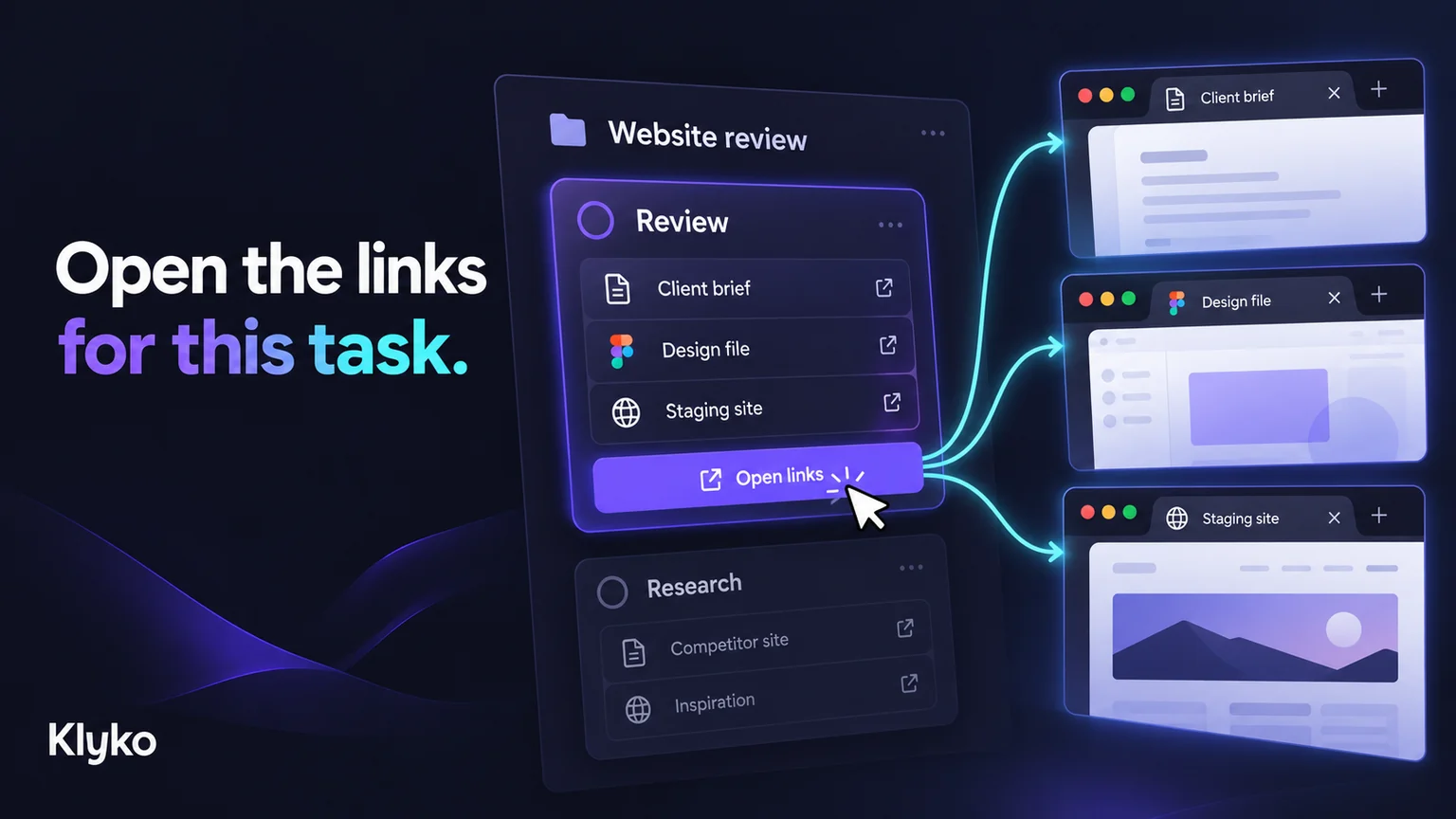
If Chrome blocks some tabs when opening several links from the website, follow Klyko's extension prompt or open the links individually. Opening a set creates new tabs; it does not restore unsaved text, sign you into every website, or recreate each page's exact state.
A checklist before you close Chrome
Spend a moment checking the save instead of discovering a missing page tomorrow:
- Save the work inside each app. Confirm the document, draft, or form is saved where it belongs.
- Check the destination. Open the bookmark folder, saved group, or Klyko board and confirm that the important pages are there.
- Test a saved link. Reopen one page and check that the URL points to the right document or project, rather than a generic dashboard.
- Leave a restart point. Record the next task and the two or three resources needed to begin it.
- Close only the tabs you have checked. For this workflow, closing the source tabs is a separate decision after saving.
For ongoing projects, keep an independent backup of information you cannot replace. Klyko's Data & Backup settings include a downloadable export; saving links on a board and keeping a backup serve different purposes.
Common questions about saving project tabs
Can I save all my tabs without an extension?
Yes. Chrome's bookmark-all-tabs shortcut creates a folder of links, and its tab groups provide another built-in way to keep related pages together. Use a project name you will recognize when reopening them. An extension becomes useful when you want to capture selected tabs directly into a separate project workspace.
Can I reopen a tab I already closed?
In desktop Chrome, Ctrl+Shift+T on Windows or Linux, or Command+Shift+T on Mac, reopens previously closed tabs in order. See Google's shortcut reference. That is useful for a recent mistake; a deliberately saved project collection gives you a named place to return to later.
Does saving tabs keep unsaved forms and messages?
Saving a URL is not a way to save an unfinished form or message. Save or submit the work in its original app first. When you reopen the URL, the website controls what content and state it can restore, and it may require you to sign in again.
Can Klyko reopen only part of a project?
Yes. Open an individual link, or create a link set containing the board links for a particular task. Your other saved resources remain on the board, alongside its notes and checklist.
Start with the tabs you need tomorrow
Pick one project window. Save its useful pages in a named place, verify the links, and write down what you will do next. When you return, open the smallest set that lets you start working.
To keep that set beside the rest of your project context, try Klyko free and create your first board. For the broader system around your saved tabs, read how to organize project links, notes, and resources.
Save your work context. Reopen it anywhere. No account required to create your first board.
Try Klyko Free