
THE KLYKO GUIDE · PROJECT ORGANIZATION
How to Organize Project Links, Notes, and Tabs in One Place
· 9 min read
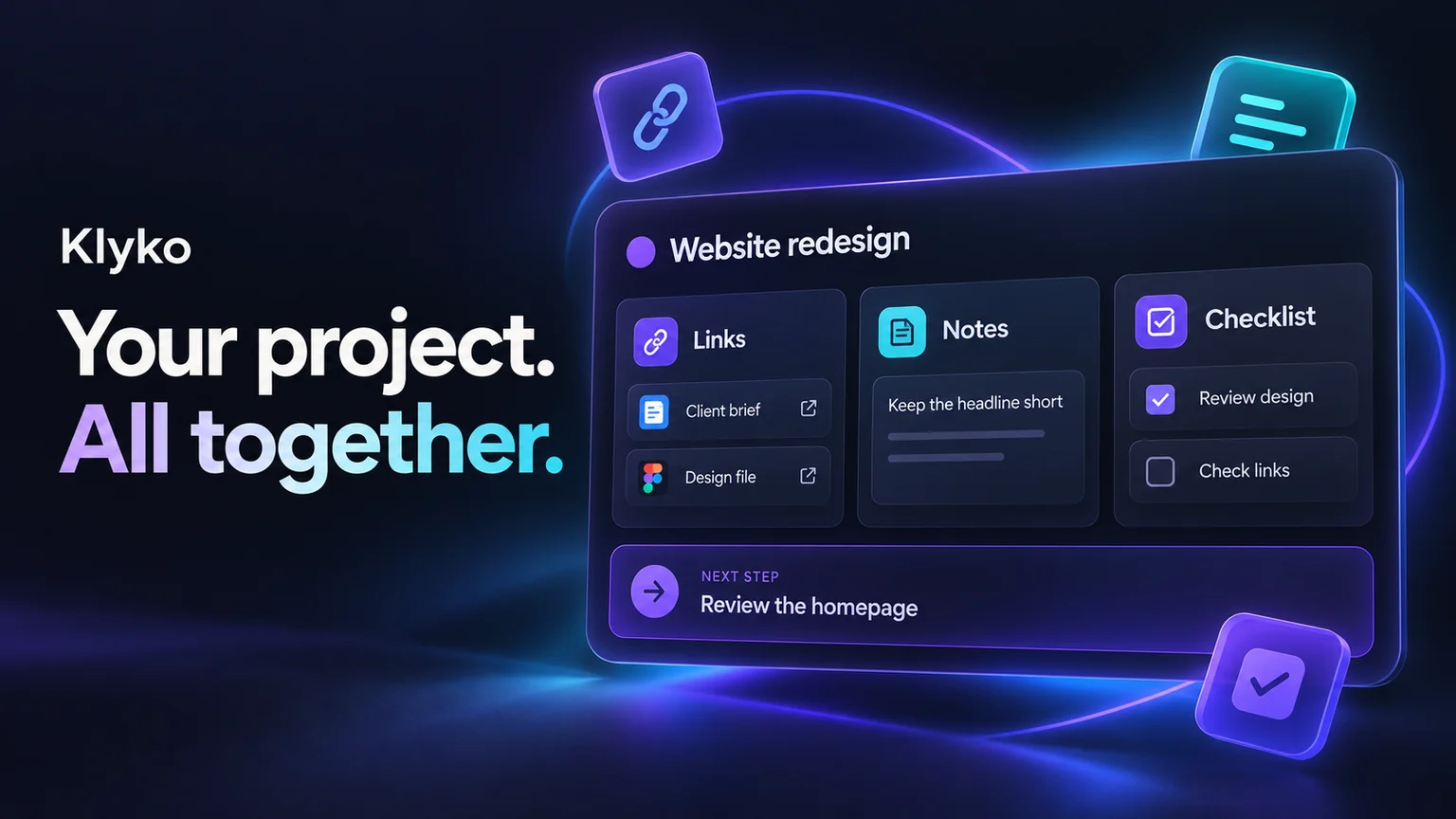
The brief is in a chat message. The latest design is somewhere in your browser. Your checklist is in a notebook, and the reason you rejected the first design lives only in your memory. Finding each resource is possible; remembering how they fit together is the harder part.
To organize project links, give each project one home, group resources by what you use them for, and keep decisions and next actions beside the links. Your browser can then hold today's work instead of everything you might need again.
Why bookmarks alone can become hard to manage
Bookmarks are useful for stable destinations: your team's dashboard, reference documentation, or a tool you use every week. A small project folder can work well. You do not need a new app just to keep six URLs together.
The difficulty starts when the folder must also explain which document is current, what you learned from a source, and what still needs doing. A saved URL does not automatically record those decisions. Meanwhile, an open tab can become a reminder you are afraid to close.
Keep the roles distinct: bookmarks or saved links tell you where, notes explain why, and a checklist records what to do. Put them close enough that opening the project gives you all three. For more on the underlying habit, see why browser tabs become a substitute for project context.
1. Give each project one home
Name the space after an outcome you recognize: “Website redesign — launch” or “Choose a customer support tool.” Avoid names such as “Useful links” that could contain almost anything.
Your project home can be a document with linked sections, a notes page, or a dedicated board. Choose a place you already check. The important rule is that new project resources go there instead of into a second private list.
Start with a short project summary:
- Goal: What will be different when this project is finished?
- Current stage: Research, draft, review, or launch?
- Start here: Which brief or source of truth should you open first?
- Next action: What is the next task you can actually begin?
For team work, put shared resources somewhere collaborators can access. Saving a link does not grant permission to its document; check access separately.
2. Sort project links by purpose
Organize links for projects around how you use them, rather than which service hosts them. A “Google Docs” folder tells you the file type. “Brief and decisions” tells you why you would open it.
Begin with three groups:
- Start here: The brief, current working document, and main project destination.
- Working resources: Designs, references, research, and tools needed for the current stage.
- Later or reference: Useful background that should not compete with today's work.
Save only resources with a clear role. Before adding a link, finish the sentence “I will use this to…” If you cannot, leave it out or put it in a separate reading list.
Rename vague page titles. “Homepage copy — approved draft” is more helpful than “Untitled document.” If a link leads to a specific section, use the page's section link when available. Add a short note for anything whose purpose will not be obvious next week.
Avoid building a deep hierarchy before you have enough material to need it. Split a group when it becomes difficult to scan, rather than creating ten empty categories on day one.
3. Keep notes and checklists with the sources
To manage project links and notes together, separate source material from your interpretation of it. A design file shows the latest mockup; a note should explain which option was chosen and what is still unresolved.
Use a small decision log: decision, reason, source, date. For example: “Use the shorter signup form because the review agreed that billing details can wait. Source: review notes, October 23.” This gives a future reader a path back to the evidence.
Write checklist items as actions with a visible finish line. Replace “Mobile” with “Check the signup form at a narrow phone width.” Include the relevant link in the task or keep it immediately beside the checklist.
Keep reference notes separate from open tasks. “Primary brand color is blue” belongs in a note. “Check button contrast against the brand color” belongs in the checklist. This keeps your task list from becoming a second document archive.
4. Example: organize a website redesign
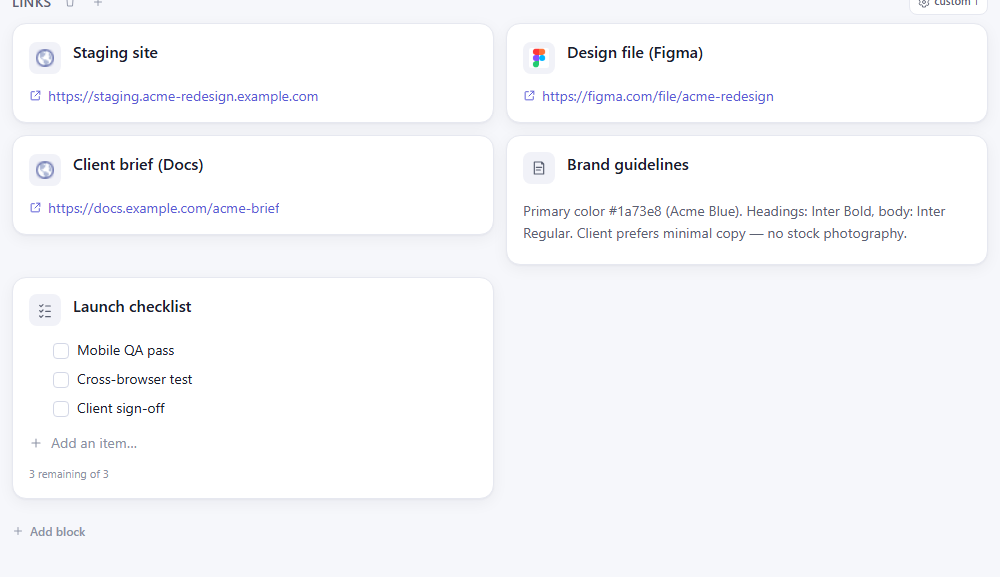
Imagine you are preparing a small business website for review. You have a staging site, a design file, a client brief, brand guidelines, and several pages of inspiration. Here is a worked example you can adapt; it is not a customer case study.
Project: Website redesign — review
Goal: Get approval for the homepage before preparing the remaining pages.
- Start here: Client brief and current staging homepage.
- Working resources: Current design file and two reference pages, each with a note about the detail worth borrowing.
- Decision note: Keep the existing brand colors. Use shorter homepage copy. Ask the client to confirm the final headline.
- Review checklist: Check mobile layout, verify the contact form, and collect client approval.
- Next action: Compare the staging headline with the approved brief, then send the review link to the client.
Notice how each item answers a different question. You can find the page, understand the design constraints, and see what to do next without reconstructing the project from a browser window.
5. Leave a useful restart point before closing tabs
To organize browser tabs for projects, first decide which pages belong to the work you are doing now. Save the remaining useful URLs in their project home. Close duplicates and unrelated reading after checking that the saved destinations are correct.
Before you stop, leave a short handoff to yourself:
- Where I stopped: “The mobile homepage review is complete.”
- What is unresolved: “The client has not approved the headline.”
- What to open next: “Open the brief and staging homepage.”
- First action: “Compare the headline with the brief and send the review request.”
A saved URL is not a backup of everything inside a tab. Save unsent text and document edits in their original app before closing it. A website may ask you to sign in again, and restoring a link does not guarantee the same scroll position or unsaved form state.
For the saving and reopening steps, follow how to save Chrome tabs by project and reopen them later.
When you return, read the handoff first and open only the resources needed for that action. Once a week, remove duplicate links and mark superseded documents clearly. When the project ends, move its home out of your active list rather than mixing it into your next project.
6. Set up the workflow in Klyko
Open Klyko and create a board for one active project. You can start without creating an account. In the interface, a board is the home for a project's work context.
- Add the essential links. Start with the brief, current working document, and destination you visit most. Use descriptive titles and add context in link notes where useful.
- Add a note. Record the goal, constraints, decisions, and unresolved questions. Keep the original source links available beside it.
- Add a checklist. Write the actions required for the current stage, rather than the whole project's possible future tasks.
- Group related items into blocks. Keep the starting resources separate from background reading when the board becomes busy.
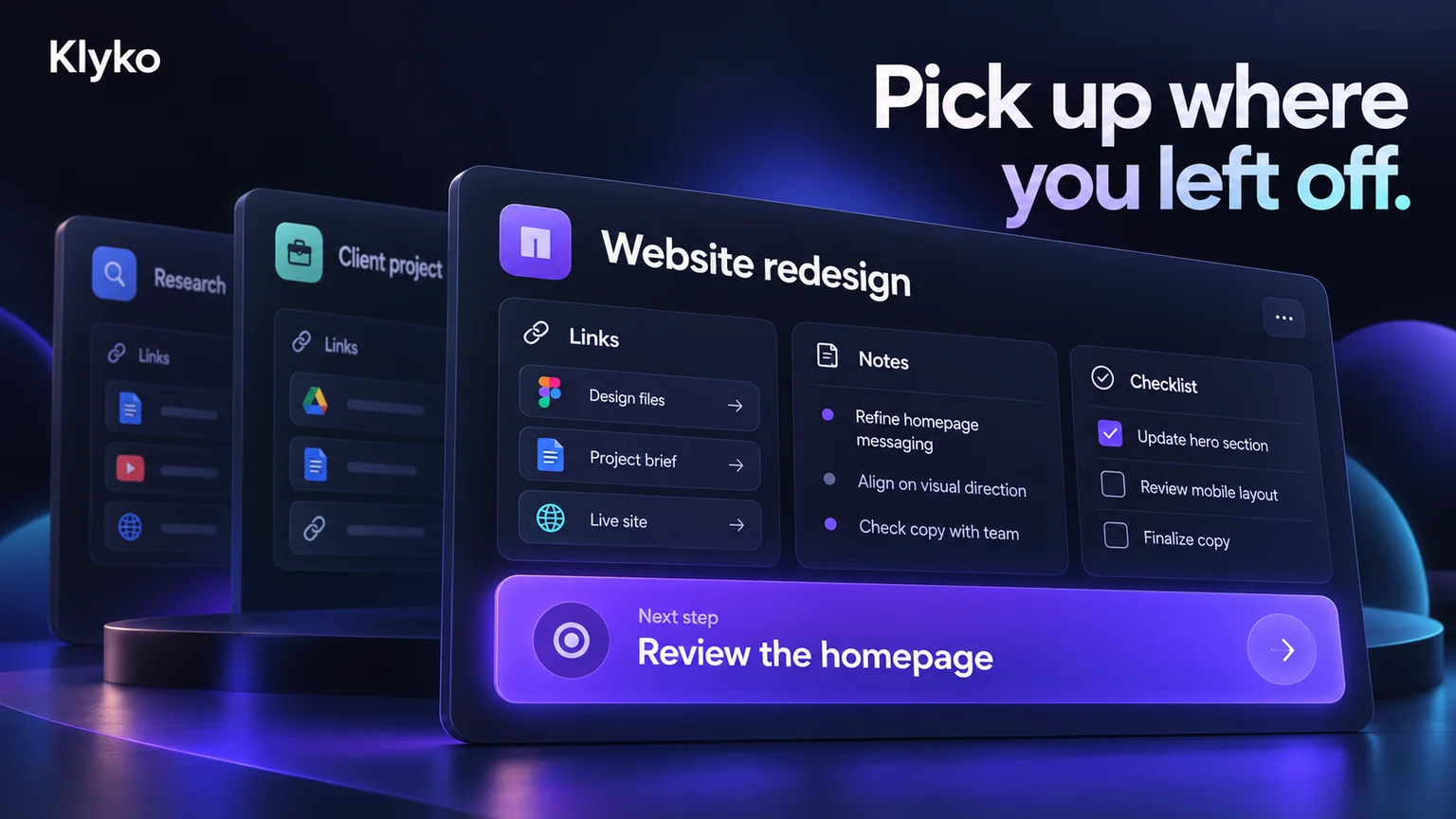
- Record your next step. Use the board's next steps to leave a concrete action for your next session.
You can open saved web links from the board. If you regularly need the same browser links together, group them into a link set. See integrations for the browser extension, which helps open multiple links without popup blocking. Saving project URLs does not restore unsaved work or launch local desktop apps.
The basic system works without automation: the value comes from keeping the resources, explanation, and next action together. If you manage several clients, the related guide on keeping client projects organized covers that wider workflow.
A project template you can reuse
Copy this into a document, note, or board and replace the prompts with your own details:
Project: [Name and intended outcome]
Current stage: [Research / draft / review / launch]
Start here: [Brief] · [Current working file] · [Main destination]
Working resources: [Link + why it matters]
Decisions: [Decision + reason + source + date]
Checklist: [Action + finish line]
Next step: [One action + the resource needed to begin]
Later: [Useful background to revisit]
Start with the project you will reopen tomorrow
You do not need to reorganize your entire browser. Pick one project, save its essential links, put a decision note and checklist beside them, and leave a clear next step. Tomorrow, check whether that is enough to resume without searching chat history or scanning old tabs. Adjust the structure around what you actually needed.
If you want a ready-made place for that workflow, try Klyko free and build your first project board.
Save your work context. Reopen it anywhere. No account required to create your first board.
Try Klyko Free