
THE KLYKO GUIDE · PROJECT ORGANIZATION
How to Reduce Chrome Memory Usage Without Losing Your Open Tabs
· 8 min read
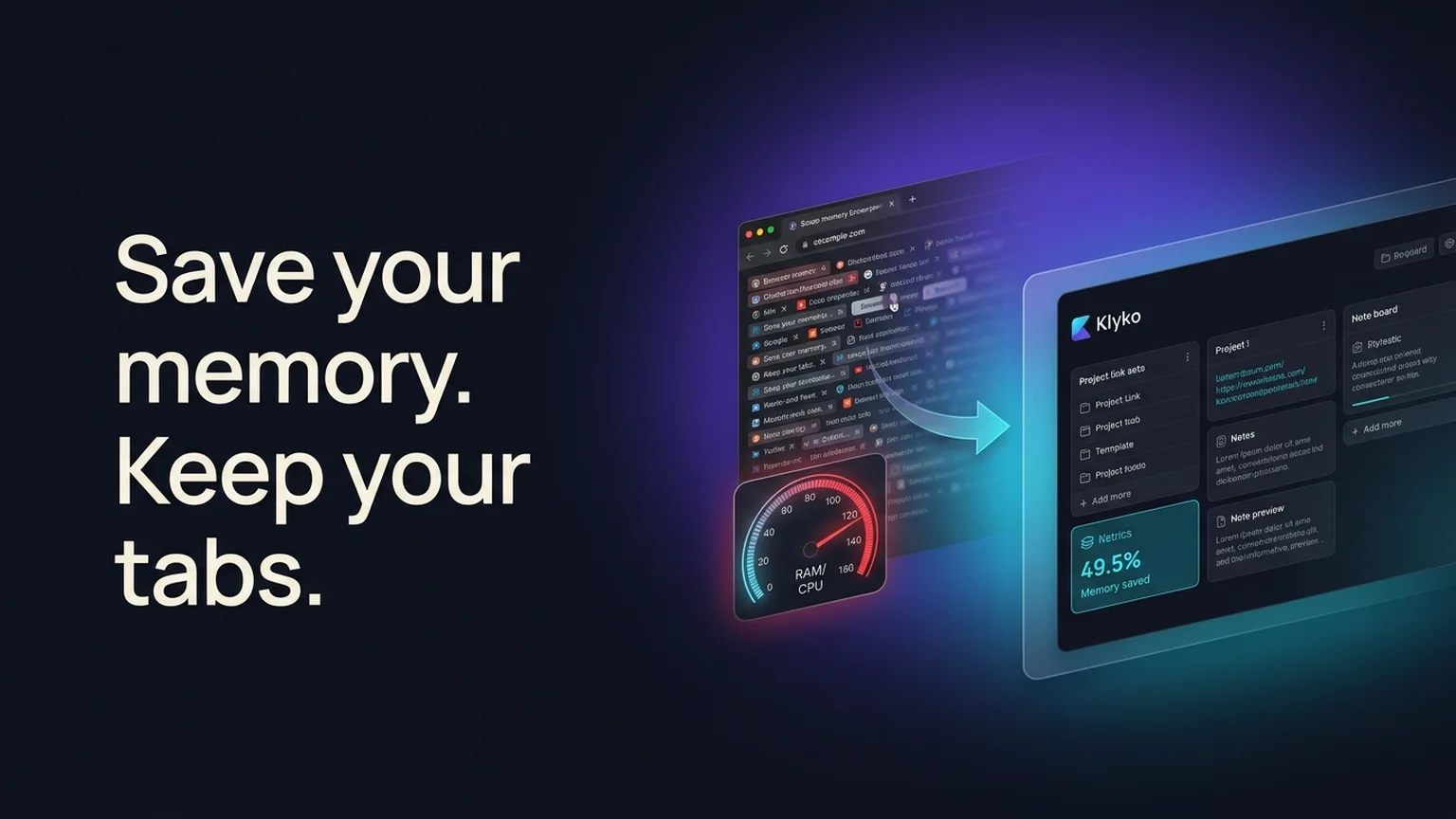
You open your operating system's Task Manager or Activity Monitor and see a grim reality: Google Chrome is using 8 GB, 12 GB, or even 16 GB of RAM across dozens of separate helper processes. Your computer feels sluggish, battery life evaporates, and switching between apps introduces noticeable lag.
Yet you cannot simply click "Close Window." Those 45 open tabs represent critical working context: design files, research documents, GitHub pull requests, staging links, and half-composed emails. You are stuck between a slow, overheating machine and the fear of losing your project context.
Reducing Chrome's memory usage does not require sacrificing your work. By understanding why Chrome consumes so much RAM and adopting an intentional tab-offloading workflow, you can reclaim gigabytes of memory while keeping every project resource instantly accessible.
Why browser tabs consume so much memory
To understand why your browser consumes so much RAM, you must look at how modern web browsers are engineered. Chrome uses a multi-process architecture for security and stability:
- Process isolation: If a complex web page crashes, it should not crash your entire browser. To prevent this, Chrome isolates different sites and browser extensions into dedicated system processes.
- Heavy web applications: Modern web pages are not static HTML text documents. Heavy web apps like Figma, Google Docs, Notion, Slack, and Jira load massive JavaScript bundles, extensive DOM trees, and background service workers that remain active in memory.
- Embedded iframes and video players: Web pages with embedded video players, ad networks, tracking scripts, and external widgets run multiple sandboxed subframes, multiplying the memory overhead of a single tab.
When you leave 40 or 50 tabs open across several windows, your system memory is tied up holding rendered canvases, script heaps, and audio contexts that you haven't looked at in hours.
The limitations of Chrome's built-in Memory Saver
Google introduced Memory Saver (formerly High Efficiency Mode) to help mitigate tab bloat. When enabled, Chrome automatically reclaims memory from tabs you aren’t actively viewing.
While Memory Saver is a helpful fallback, it suffers from several practical flaws:
- Tab bar clutter remains: Discarded tabs remain in your tab strip. Having 60 microscopic favicons still causes severe visual clutter and cognitive overhead.
- Reload lag and lost work: When you click on a discarded tab, Chrome must reload the page from scratch over your network. If the page contained unsaved form inputs, temporary filter settings, or specific scroll positions, that transient state can be lost.
- Unpredictable discarding: You cannot easily control which tabs are kept in memory and which are discarded unless you maintain an extensive exclusion list in Chrome’s settings.
Relying on automatic tab discarding treats the symptom rather than the underlying problem: keeping tabs open as an accidental reminder system.
Comparing ways to manage tab memory
Knowledge workers have tried various workarounds to prevent browser tabs from overwhelming system resources. Here is how the most common approaches compare:
| Strategy | RAM reduction | Context preservation | Trade-offs to consider |
|---|---|---|---|
| Chrome Memory Saver | Moderate (frees background heap) | High (tab stays visible) | Tabs still clutter your screen; slow reload latency upon selection. |
| Tab suspender extensions | High (sleeps inactive tabs) | Medium (replaces tab with placeholder) | Third-party extensions can crash, lose URLs, or inject unwanted scripts. |
| Exporting to bookmarks | Complete (closes tabs) | Low (URLs only, no task context) | Bookmarks become a graveyard; difficult to know which tab was being worked on. |
| Klyko Project Workspaces | Complete (closes tabs, zero RAM) | High (links, notes, checklists, next step) | Requires a conscious 30-second offloading ritual when finishing a sprint. |
A 4-step workflow to reclaim your RAM
Follow this actionable workflow to bring your browser's memory footprint down to near zero without losing a single project resource:
Step 1: Identify your biggest memory offenders
Press Shift+Esc in Chrome on Windows or select Window > Task Manager on macOS to open Chrome’s built-in Task Manager. Sort by Memory Footprint. You will often find two or three tabs (such as an open web design canvas, a data dashboard, or a complex spreadsheet) consuming 1 GB of RAM each.
Step 2: Offload active projects into dedicated boards
Instead of letting those tabs idle in the background, save them into a structured workspace. With the Klyko extension, you can select the open tabs related to your active project and save them directly to a named workspace board.
Group the links logically (e.g., “Research Documents”, “Design Assets”) and note the current status so you know exactly where you stopped. For a complete guide on this process, read how to save tabs in Chrome by project and reopen them later.
Step 3: Record your next step and close the project window
Before closing those high-memory tabs, write down your immediate next action in the workspace's Next Step card (e.g., "Export final PNG assets for the landing page"). Once the context is recorded, close the browser window completely. Your system RAM is immediately freed.
Step 4: Reopen only the links for your current sprint
When you return to work, open your Klyko board. Instead of restoring 30 tabs at once, click on the specific link set required for your current task. Your browser stays fast, your CPU remains cool, and your attention stays focused.
Memory impact: 50 open tabs vs. a project board
To illustrate the tangible system difference, consider typical real-world memory benchmarks:
- 50 Active Chrome Tabs: Typically consumes between 3.8 GB and 6.5 GB of system RAM, with 40+ background processes executing background timer loops, telemetry pings, and animation frames.
- 50 Discarded Tabs (Memory Saver): Consumes approximately 1.2 GB to 2.0 GB of RAM, with visual tab strip clutter still consuming layout render time.
- Klyko Local-First Workspace Board: Uses 0 MB of browser tab memory when your browser is closed, or approximately 40 MB for the lightweight offline web app. All 50 project links, notes, and tasks are safely preserved in your browser’s IndexedDB storage.
By offloading tabs to a local workspace, you instantly reclaim over 90% of your browser's memory overhead.
Habits to keep your browser fast permanently
Reclaiming memory once is useful, but maintaining a lightweight browser requires a few sustainable habits:
- Avoid using tabs as an unread reading list: If you find an interesting article that is not relevant to today's deliverable, save it to a dedicated reading list or read-it-later tool rather than leaving it open in your main window.
- Close tabs at natural stopping points: Treat the end of a sprint or the end of the workday as a cleanup milestone. Offload any open project resources and close the window so you start fresh tomorrow.
- Audit browser extensions: Every installed Chrome extension runs background processes that consume RAM continuously. Remove extensions you haven't used in the past month.
- Use task-based link sets: When launching project work, launch only the 2 to 4 links needed for the immediate step. For inspiration on structuring links, review our guide on organizing project links, notes, and tabs in one place.
Frequently asked questions
Does closing tabs really improve laptop battery life?
Yes, significantly. Even when background tabs are inactive, modern web pages frequently run JavaScript interval timers, maintain open WebSocket connections, and execute background service workers. By closing unnecessary tabs, you reduce background CPU wakeups, allowing your processor to enter deeper low-power sleep states.
What is the difference between tab suspension and workspace offloading?
Tab suspenders keep tabs pinned in your browser tab strip and replace the page with a placeholder HTML document. While this reduces RAM, it does not clean up visual clutter, and extensions can lose your tab history if they update or crash. Workspace offloading saves your links, notes, and next actions into an independent local-first database and closes the browser tabs entirely.
Will I lose my login sessions if I close my tabs?
No. Your login authentication sessions are stored in HTTP cookies and local storage tokens, not in the open tabs themselves. When you reopen a saved link from your workspace, you will remain logged in to your account as long as your session has not expired.
Save your work context. Reopen it anywhere. No account required to create your first board.
Try Klyko Free