THE KLYKO GUIDE · PROJECT ORGANIZATION
How to Organize Deep Work Research Tabs Without Losing Context
· 9 min read
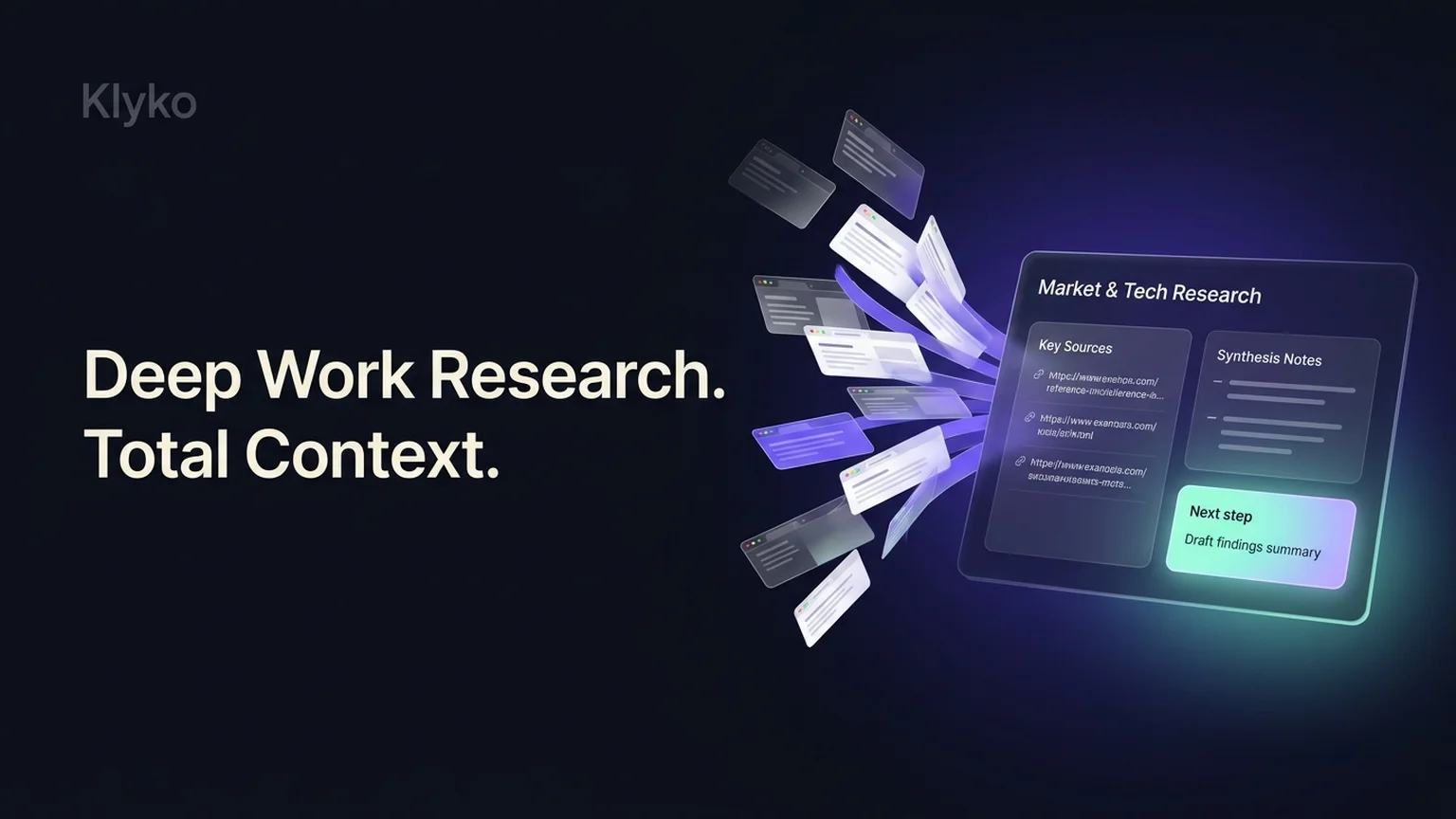
You start searching for a specific answer. Twenty minutes later, you have three windows open and forty-seven tabs stretching across your screen: three academic PDFs, five Stack Overflow threads, four GitHub issues, a competitor pricing page, and half a dozen articles you opened because "this might be relevant later."
Your browser's tab strip is compressed into microscopic, unrecognizable icons. Your laptop fans spin up. Worse, your working memory feels completely fractured. You hesitate to close anything because you fear losing that one critical insight, but keeping all forty-seven tabs open guarantees you cannot focus on the actual task.
This is tab paralysis—the natural consequence of using raw browser tabs as a makeshift external memory.
This guide outlines a repeatable, low-friction system for managing deep research rabbit holes without losing context, burning computer memory, or suffering from tab anxiety.
The psychology of the research tab trap
Knowledge workers and researchers open tabs for two very different reasons:
- Immediate Execution: The page you are reading, quoting, or testing right now.
- Context Insurance: Pages you opened because you worry that if you close them, you will never find that specific data point or line of reasoning again.
When you leave thirty tabs open across your screen, your brain treats every tab header as an uncompleted cognitive loop. Every time you switch windows, your eye scans the row of icons, forcing an micro-evaluation of whether you should be reading tab #14 or tab #29 instead of writing your current paragraph.
Standard browser bookmarks fail to solve this because they provide zero temporal context. A URL saved in a generic bookmark folder has no reminder of why you saved it, which paragraph mattered, or what decision it supported. Within 48 hours, that bookmark becomes dead data.
To do deep work, you need a system that preserves the reasoning behind the link while removing the visual clutter from your browser.
Four ways to handle research tabs compared
Before restructuring your current session, choose the right capture method for the depth of your project.
| Method | Best for | Why it struggles with deep research |
|---|---|---|
| Browser bookmarks folder | Static reference libraries (documentation, portals). | No room for notes, quotes, or status; quickly becomes an unread cemetery of links. |
| OneTab / Raw session dumps | Emergency RAM clearance before a video call. | Dumps 50 unrelated tabs into a flat list with no grouping, context, or project separation. |
| Read-it-later apps (Pocket, Omnivore) | Casual articles and long-form essays. | Disconnected from your project workflow; lacks checklists, next steps, and task groups. |
| Klyko project workspace | Active deep work, client research, papers, and thesis writing. | Combines task-based link sets with markdown notes, structured tables, and next actions in one local board. |
Step 1: The 3-Bucket Triage (Active, Evidence, Backlog)
When you find yourself staring at 40+ open tabs, resist the urge to read them one by one. Instead, execute a fast 3-Bucket Triage:
Bucket A: Active Working Set (Keep open: Max 3–5 tabs)
Only the pages you are actively cross-referencing this hour. For example:
- The draft document or code editor you are writing in.
- The primary reference specification or dataset.
- One active testing tab.
Bucket B: Project Evidence & Citations (Save to Klyko Board)
These are tabs that contain hard data, quotes, statistics, or solutions you will reference later in your report or pull request.
- Select these tabs and save them into a dedicated Klyko board named after your research milestone (e.g., "Q4 Market Benchmark" or "Auth Architecture Research").
- Group related links together (e.g., "Security specs", "Competitor pricing", "Benchmark data").
- Once saved to the board, close the tabs immediately. They are securely stored in your local workspace and no longer consume RAM or mental bandwidth.
Bucket C: Curiosity Backlog (Close or archive)
These are interesting rabbit holes that caught your eye but are not strictly necessary to answer your primary research question.
- Ask yourself: "If this tab disappeared forever, would my project fail?"
- If the answer is no, close it. If you might want it for recreational reading over the weekend, drop the link into a single "Read Later" note card and close the tab.
Step 2: Anchor links with 1-line notes and tables
A raw list of 20 URLs is nearly useless two weeks later. The secret to frictionless deep work is context anchoring.
Whenever you save an important research link to a Klyko board, attach a 1-sentence note or add it to a quick summary table:
### Key Sources
- [RFC 9110 HTTP Semantics](https://www.rfc-editor.org/rfc/rfc9110)
  *Context: Section 8.3 defines idempotent retry rules for 502 vs 504 errors.*
- [Database connection pool tuning](https://example.com/guide)
  *Context: Recommended max_connections calculation on page 4.*
Use structured tables for side-by-side evaluation
If you are comparing tools, libraries, or competing arguments, use Klyko's native tables to keep findings right beside the links:
| Option | Primary Advantage | Trade-off / Limitation | Key Reference |
|---|---|---|---|
| IndexedDB | Fully local, zero latency, works offline | Requires client-side schema migrations | Local-First Spec |
| SQLite (WASM) | Full SQL queries in browser | Larger bundle download size | Web SQLite Guide |
Having links and structured comparison data in one unified view allows you to close your tabs with complete confidence that your conclusions are preserved.
Step 3: Set a Next-Morning Anchor before closing
The single biggest reason people leave dozens of research tabs open overnight is startup inertia. You worry that if you close your browser, restarting tomorrow will require ten minutes of digging through history just to find where you were in your train of thought.
Solve this by creating a Next-Morning Anchor before you shut down:
- Add a prominent Next Step card at the top of your Klyko project board.
- Write one concrete, low-friction task that takes less than five minutes to start (e.g., "Write introduction paragraph using data from Table 2" or "Review section 4 of benchmark doc").
- Associate that next step with the single link or note card needed to begin.
When you sit down tomorrow morning, you don't face a blank screen or a disorienting wall of 50 stale tabs. You open your project board, read the anchor, click the link, and immediately enter a deep work flow state.
Step 4: Reopen in focused batches with link sets
When resuming work, never reopen all twenty saved research links at once. Opening twenty tabs simultaneously recreates the exact visual clutter and memory overhead you just eliminated.
Instead, organize your saved links into Link Sets inside Klyko:
- Create a link set for "Phase 1: Draft Outline" containing just the 3 essential references.
- Create a link set for "Phase 2: Verification" with the raw benchmark spreadsheets and API documentation.
With one click, open only the links needed for your current subtask. When that subtask is complete, close those tabs and open the next batch.
The 5-minute research shutdown checklist
Before you walk away from your desk at the end of a deep research sprint, run through this 5-minute checklist:
- Close finished rabbit holes: Any tab you opened for a quick definition or syntax check gets closed.
- Capture core evidence: Save 3–6 essential reference links into your project board.
- Attach 1-line context notes: Clarify why each saved link matters while the thought is fresh.
- Set tomorrow's Next-Morning Anchor: State the exact first action to take when you return.
- Close all research windows: Enjoy a completely clean browser window and zero tab guilt.
Frequently asked questions
How many tabs should I keep open during deep research?
Aim to keep no more than 3 to 5 active tabs open simultaneously in your primary working window: your working document or editor, your primary reference source, and one validation tab. Save all supporting citations, benchmark data, and secondary documentation directly to a project board and close the tabs to preserve focus and working memory.
What is the difference between a research workspace and a bookmark folder?
A bookmark folder is a flat list of web addresses with no context, notes, or execution order. A research workspace in Klyko pairs your saved links with markdown notes, structured comparison tables, checklists, and a prominent "Next step" anchor, allowing you to resume complex projects without re-reading every source.
Won't I forget to read tabs if I close them into a project board?
Leaving 50 tabs open in your browser tab bar creates visual blindness, causing you to overlook critical pages anyway. Placing selected links into a named Klyko project board with a clear next action provides visual structure and deliberate retrieval, preventing valuable sources from becoming lost in browser clutter.
Does saving research tabs to Klyko keep them offline?
Yes. Klyko is built on a local-first architecture using IndexedDB. All your project boards, notes, summaries, tables, and link sets remain fully accessible and editable even without an active internet connection.
Turn research chaos into project momentum
Deep work doesn't require hoarding dozens of fragile browser tabs. Give your research a structured home with notes, tables, and actionable next steps.
Try Klyko free and organize your first research sprint today. For more strategies on managing multiple commitments, read our guide on how freelancers organize tabs across multiple clients.
Save your work context. Reopen it anywhere. No account required to create your first board.
Try Klyko Free