Tab Manager Privacy: What 'Read and Change All Your Data on All Websites' Really Means
· 9 min read
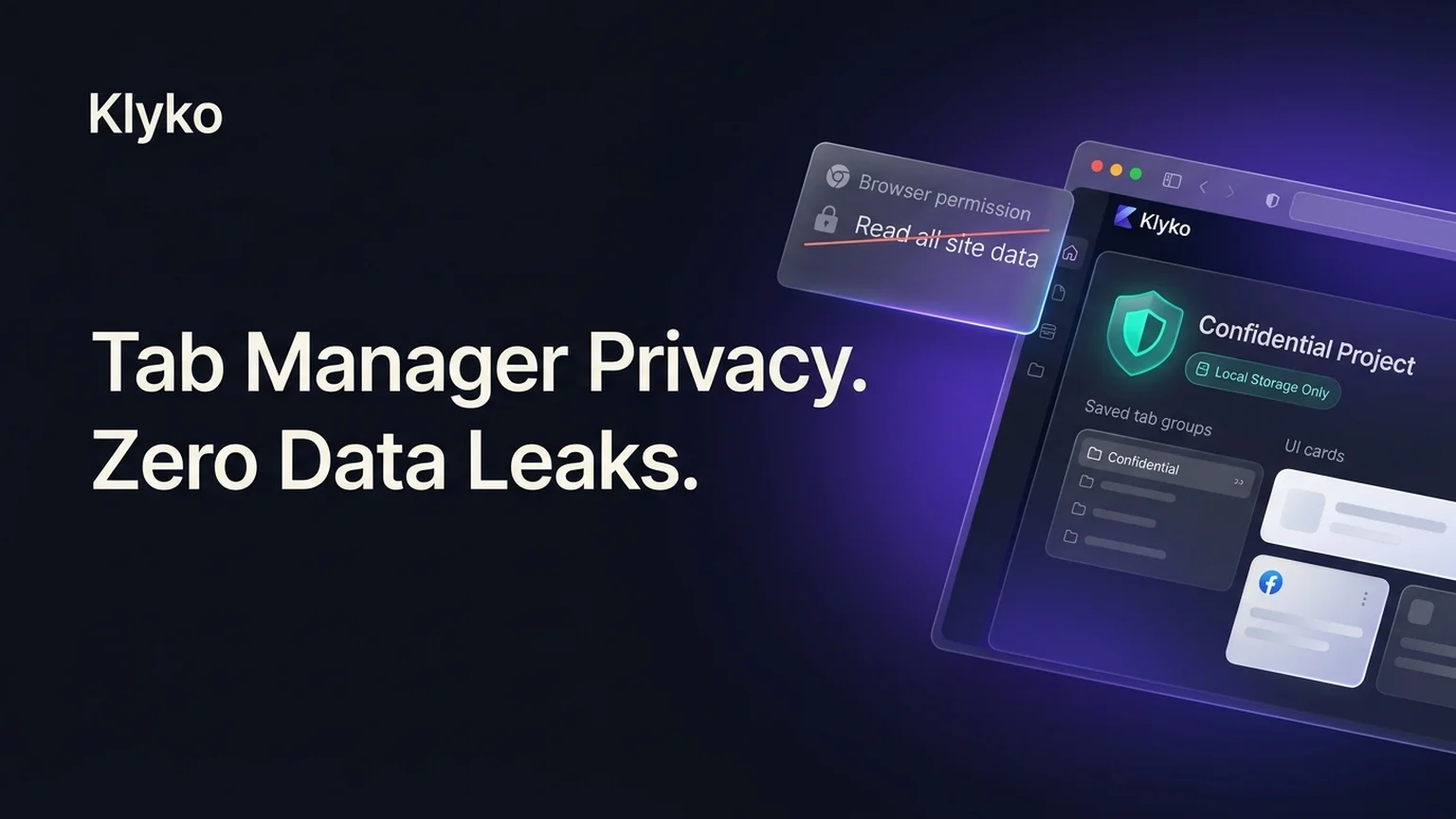
You find a promising tab manager in the Chrome Web Store, click Add to Chrome, and a blunt security warning stops you in your tracks:
"It can read and change all your data on all websites."
For an extension that is only supposed to save, group, or organize links you have already opened, that alert sounds alarmingly broad. It sounds like an open invitation for a stranger to watch everything you type, read your internal company wikis, and log your session tokens.
And in many cases, that skepticism is entirely justified.
Understanding what browser permissions actually mean—and how modern local-first tools bypass invasive access models—is critical for protecting both your personal privacy and workplace security.
What "read and change all your data" actually does
When Chromium browsers display the warning "Read and change all your data on all websites", they are informing you that the extension has requested broad host permissions (such as <all_urls> or *://*/*).
Behind the scenes, this grants the extension access to the Document Object Model (DOM) of every page you load:
- Read permissions: The extension can inspect any text, form input, hidden field, or rendered HTML element. This includes private emails in webmail, customer records in your CRM, staging environments behind corporate firewalls, and personal financial dashboards.
- Change permissions: The extension can inject arbitrary JavaScript (
content scripts) and CSS. It can modify button destinations, inject invisible tracking pixels, alter page layouts, or insert affiliate redirects when you shop online. - Cookie and token exposure: While dedicated cookie APIs exist, an extension with full DOM execution access can often extract active session tokens, local storage secrets, and authentication parameters stored directly in web application state.
| Permission scope | Browser warning | What the extension can see | Security risk level |
|---|---|---|---|
Standard Tabs API (tabs) |
"Read your browsing history" (or no warning in modern MV3) | URL, page title, favicon URL, and active window state. | Low: Cannot read page contents, forms, passwords, or tokens. |
Active Tab (activeTab) |
No permanent warning; temporary access on click | URL and title of the single tab you interact with when clicking the extension icon. | Minimal: Completely dormant until you explicitly click the tool. |
Full Host Permissions (<all_urls>) |
"Read and change all your data on all websites" | Full DOM access, input keystrokes, form data, internal intranet contents, and document state. | Critical: Any compromised update can inspect or steal confidential data. |
Why simple tab managers ask for excessive access
If organizing tabs only requires knowing what URL you are visiting, why do so many tab managers demand the keys to your entire browser?
There are three common technical and design reasons:
1. Tab discarding and memory suspending
Legacy "tab suspenders" freeze inactive background tabs to reduce RAM usage. To restore a suspended tab exactly where you left off—or to save an exact preview snapshot—the extension injects background scripts into the page before discarding it. Doing so across every possible website requires broad host permissions.
2. Scraping page metadata and rich previews
Some tab tools generate rich visual bookmarks with article thumbnails, highlighted quotes, or custom summary cards. Instead of relying on lightweight OpenGraph headers or simple page titles, they inject content scripts to parse the DOM, scrape headings, and download page assets locally.
3. Developer convenience and lazy permission scoping
In Manifest V2 and early Manifest V3 configurations, requesting <all_urls> was the easiest way for developers to avoid permission errors when interacting with subdomains, iframes, and redirected links. Rather than requesting specific URLs or using the user-initiated activeTab pattern, developers defaulted to requesting everything at install time.
The silent buyout risk: how trusted extensions turn malicious
Even if you personally trust an indie extension developer today, browser extensions carry a unique structural risk: silent auto-updates.
Extensions installed from web stores automatically update in the background without prompting you, provided the developer does not request new permissions beyond what you already granted. If an extension already possesses "read and change all your data on all websites", future updates can introduce entirely new behaviors without triggering a single notification.
This dynamic has created a predatory secondary market:
- An independent developer creates a popular, well-liked tab manager or productivity utility that gathers 100,000+ active users.
- The developer finds maintenance burdensome and receives an unsolicited acquisition offer from a "marketing optimization" or analytics broker.
- The original creator sells the extension. The new owner silently pushes a minor update containing obfuscated data-scraping SDKs or affiliate injection scripts.
- Because the extension already had full web access, users remain oblivious while their browsing history, query parameters, and intranet visits are monetized.
High-profile cases involving suspended extensions, session savers, and utility add-ons have repeatedly proven that broad extension permissions represent a permanent supply-chain vulnerability.
Cloud tab syncing vs local-first storage
Beyond local browser permissions, where does your tab data actually go once it is saved?
Many heavy workspace managers operate on a centralized cloud model:
- Every tab you save, rename, or organize is immediately uploaded to proprietary multi-tenant cloud databases.
- Tab URLs frequently contain sensitive data: internal staging domains (
https://staging-v2.internal.company.com/client-billing), unlisted document tokens, or pre-filled query strings containing email addresses and reset identifiers. - If the provider suffers a data breach, shuts down, or alters their privacy terms, your private work history is exposed.
In contrast, a local-first architecture stores your workspaces, links, notes, and tables directly inside your browser's private IndexedDB sandbox. The data never leaves your computer unless you explicitly choose to generate a public or restricted share link.
How to audit and restrict extension permissions today
You do not have to accept an all-or-nothing approach with your browser extensions. Chromium browsers (Chrome, Brave, Edge, Opera, and Vivaldi) allow you to surgically restrict when and where an extension can execute.
Step 1: Open extension settings
Navigate to chrome://extensions in your browser address bar. Find the tab manager in question and click Details.
Step 2: Restrict "Site access"
Scroll down to the Site access section. By default, extensions with broad permissions will be set to "On all sites". Change this setting to:
- "On click": The extension is completely inert and has zero access to web traffic until you click its icon in the browser toolbar.
- "On specific sites": Restrict the extension so it can only run on specific domains, completely blocking it on banking sites, corporate intranets, and sensitive cloud providers.
How Klyko organizes projects without spying on your tabs
Klyko was architected from day one to reject invasive browser permissions and respect user autonomy:
- Local-first IndexedDB storage: Your project boards, bookmarks, markdown notes, checklists, and data tables live on your device. There is no remote tracking database recording what projects you work on or when you open them.
- Minimal permission footprint: Klyko operates as a full-featured web application that you can run in any browser tab without installing invasive third-party extensions. Its optional companion extension only requires standard, privacy-respecting tab controls to capture selected links into your boards when you choose to save them.
- No DOM inspection: Klyko never injects scripts into your banking portals, company documents, or private chats to read form entries or keypresses.
- Permanent local export: You can export your entire workspace at any time in standard open JSON or markdown formats via Backup settings, ensuring you are never held hostage by proprietary cloud sync engines.
Organizing your work shouldn't require surrendering your digital privacy. By keeping your project context in a local-first workspace, you get clean, organized boards, task-based link sets, and instant focus—with zero security compromises.
Frequently asked questions
Why do tab managers ask to read and change all data on websites?
Tab managers typically request this permission to inject scripts into background tabs for memory suspension, to capture rendered page screenshots, or because the developer defaulted to broad host permissions for convenience. However, simply saving and reopening URLs only requires standard tab metadata APIs, making full DOM access unnecessary for basic organization.
Can a tab manager steal my passwords or session cookies?
If an extension has permission to "read and change all your data on all websites", it technically has full access to the Document Object Model (DOM) of every page you visit. While modern browsers restrict direct cookie access to specific cookie APIs, an extension with full DOM execution can inspect form inputs, read unmasked fields, and intercept active web application tokens. This is why untrusted extensions with broad host permissions represent a severe security risk.
How can I check and restrict what permissions my browser extensions have?
Open chrome://extensions in Chrome, Brave, or Edge, click "Details" on any installed extension, and review the "Permissions" and "Site access" sections. You can change site access from "On all sites" to "On click", which completely prevents the extension from running or inspecting pages until you deliberately click its icon.
How does Klyko keep project tabs and notes private without invasive permissions?
Klyko runs as a local-first application using IndexedDB storage directly in your browser. Your links, notes, checklists, and project tables are saved locally on your computer rather than synced to third-party ad networks or remote cloud databases. Klyko does not inject scripts into external web pages or monitor your active browsing history.
Take back control of your browser
You don't need to trade your confidentiality for an organized workspace. Keep your project links, notes, tables, and next actions in a fast, private board that respects your privacy.
Try Klyko free and start organizing your client projects with complete peace of mind. To learn more about offline software architecture, read what local-first actually means.
Save your work context. Reopen it anywhere. No account required to create your first board.
Try Klyko Free