Chrome Tab Groups vs Dedicated Tab Managers: Why Native Groups Disappear and Fail for Real Projects
· 6 min read
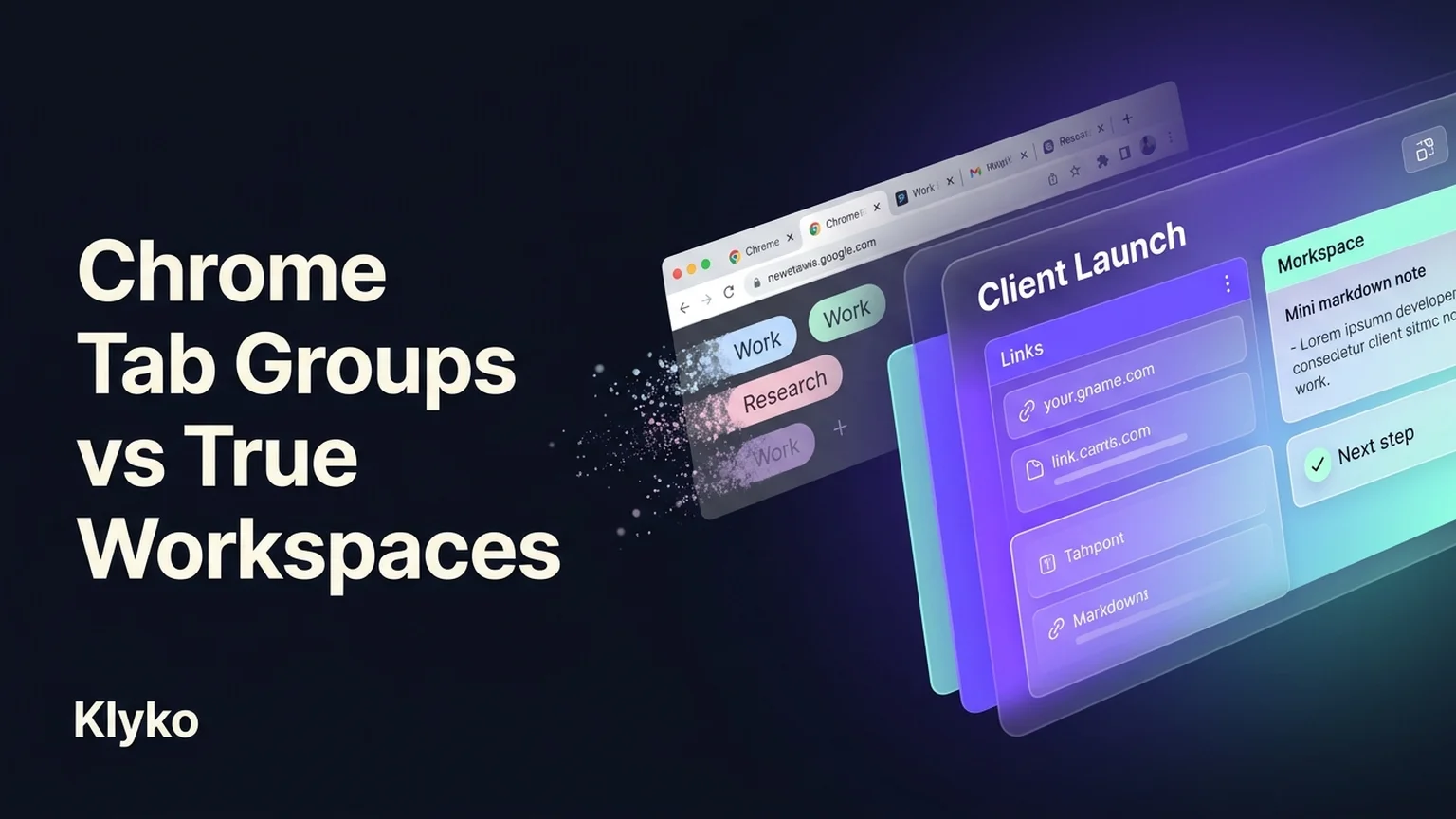
Google introduced Chrome Tab Groups with great fanfare. By allowing users to right-click open tabs, group them with custom labels, and assign bright colors, it promised an end to horizontal tab clutter without installing any third-party extensions.
At first glance, it feels like the perfect solution. But if you have ever relied on Chrome Tab Groups for multi-week client deliverables, software engineering sprints, or academic research, you have likely encountered their frustrating limitations:
- The vanishing groups bug: A single unexpected browser crash, a silent Chrome background update, or accidentally closing a window with multiple groups can wipe out days of carefully arranged tabs.
- The illusion of memory savings: Collapsing a tab group hides the tabs visually, but it does not free up your system RAM. 50 tabs tucked inside four collapsed groups will still cause Chrome to consume gigabytes of memory and drain your battery.
- The context vacuum: A tab group is strictly a collection of URLs. It cannot explain why you opened those five links, what meeting notes accompany them, or what decision you need to make next.
- Visual horizontal overcrowding: Once you have six or seven named groups active, your tab bar becomes an illegible accordion of squished icons and truncated titles.
If you are trying to decide whether to stick with native Chrome Tab Groups or upgrade to a dedicated tab and workspace manager, this guide breaks down the technical differences, failure points, and optimal workflows.
Summary comparison: Chrome Tab Groups vs Dedicated Workspaces
| Feature | Native Chrome Tab Groups | OneTab / Session Buddy | Klyko Workspaces |
|---|---|---|---|
| Persistence & Crash Safety | Fragile (lost on bad restarts or closed windows) | Session dumps (saved to extension storage) | Permanent local-first database (IndexedDB) |
| RAM & CPU Impact | High (all tabs remain loaded in background) | Zero (tabs are closed and listed as text) | Zero (tabs are closed until selectively reopened) |
| Project Context | None (URLs only) | None (flat text list of URLs) | Rich Markdown notes, checklists, tables & next steps |
| Selective Task Reopening | All or nothing | Restore all or click one by one | Organized task link sets with one-click launch |
| Cross-Device & Cross-Browser | Google account only (Chrome to Chrome) | None or paid proprietary cloud | End-to-end encrypted sync or open JSON backup |
| Privacy | Tied to Google account telemetry | Local or third-party cloud | Zero URL tracking, works 100% offline |
Why native Chrome Tab Groups fail for long-term projects
To understand why Chrome Tab Groups often disappoint power users, it helps to look at their original design intention.
Google engineered Tab Groups for short-term, same-day session triage:
- You are researching flights and hotels for an upcoming trip: group 6 tabs together under "Vacation", review them, book, and close the group.
- You are comparing 4 pull requests in GitHub: group them under "Code Review", finish reviewing, and close the group.
Tab Groups were never engineered to be a durable project context archive. When users treat them as a permanent project vault, four severe problems emerge:
1. The multi-window closure disaster
The most frequent complaint on browser support forums is: "Chrome restarted, and only my last active window reopened—all my other saved tab groups are gone!"
Because Chrome determines session recovery based on your last closed window, closing a window containing your tab groups before closing a secondary blank window can overwrite your session restore state. While Chrome added a "Save group" bookmark bar feature, it is prone to sync desynchronization and clutters your bookmarks bar with redundant temporary links.
2. Collapsing a group is not suspending a tab
When you click a group pill in Chrome to collapse it, the tabs disappear beneath the label. However:
- Every open tab still occupies its allocated Chromium renderer process.
- Background scripts, WebSockets, video pre-buffers, and tracking pixels continue executing.
- If you have 60 tabs split across 5 collapsed groups, your machine still pays the full CPU and RAM penalty of 60 open tabs.
3. Tab groups cannot store notes, decisions, or checklists
A project rarely consists purely of web pages. When you pause work on a client deliverable for the weekend, you don't just need the 4 URLs you were looking at. You need to remember:
- What client feedback you were addressing.
- What decisions were approved in yesterday's call.
- The exact next action required when you open your laptop on Monday morning.
A native tab group has no space for notes, no checklists, and no reminders. Returning to the group on Monday forces you to reopen all 4 tabs and spend 15 minutes reconstructing your train of thought.
The solution: The hybrid workflow
You do not have to abandon Chrome Tab Groups entirely. In fact, the most productive engineers and knowledge workers use a two-tier hybrid system:
[ Daily Ephemeral Tasks (0 - 2 hours) ]
             ↓
    Native Chrome Tab Groups
   (Triage 5-10 tabs right now)
             ↓
[ Long-Term Project Work (Days / Weeks) ]
             ↓
       Klyko Workspaces
   (Saved Link Sets + Notes + Next Steps)
- Use Chrome Tab Groups for live, in-flight triage: When you are actively comparing 3 documents or researching an immediate question, group them with a native color label.
- Move durable project resources into Klyko: Once research transitions into an ongoing project, save the links into a dedicated Klyko board. Add context notes, paste data tables directly from spreadsheets, set a next action, and close the tabs in Chrome.
- Reopen selectively when ready: When you resume the project next week, click Open links on that specific link set. Chrome opens the fresh tabs instantly, leaving your browser clean and fast in the meantime.
Frequently asked questions
Why do my Chrome tab groups keep disappearing?
Chrome tab groups often disappear when Chrome crashes, performs an automatic background update, or when you close multiple browser windows in the wrong sequence. Because Chrome's session restore mechanism prioritizes the final window closed, tab groups in previously closed windows can be lost permanently unless saved in a dedicated workspace manager.
Do collapsed Chrome tab groups save RAM?
No. Collapsing a tab group in Chrome only hides the tabs visually from the top tab bar. Unless Chrome's memory saver specifically discards them, background tabs still consume memory, execute scripts, and drain battery life.
Can I save Chrome tab groups with notes and tasks?
Native Chrome tab groups do not support notes, checklists, or next actions. To keep project context alongside your tabs, use Klyko, which organizes links, Markdown notes, spreadsheet tables, and task checklists inside local-first project boards.
What is the difference between tab groups and a workspace manager?
Chrome tab groups are temporary visual clusters for tabs you are using right now in your current browser window. A workspace manager like Klyko stores curated project link sets, notes, and tasks permanently in offline local storage, allowing you to close all browser tabs to free up RAM and reopen the project anytime.
Save your work context. Reopen it anywhere. No account required to create your first board.
Try Klyko Free